


 181
181
CONC Request Run as Administrator Guide
Purpose
The CONC Request Run as Administrator option allows you to run/download approved applications with elevated permissions without needing a local administrator account. This improves security while still allowing you to complete your work.
How to Use CONC Request Run as Administrator
Step 1 — Locate the application you want to run
You can start from:
- Desktop shortcut → Right-click the shortcut
- File Explorer (Downloads folder) → Right-click the application’s .exe file
- Start Menu → See important note below
Important for Start Menu users
Right-clicking an item directly in the Start Menu will not show CONC Request Run as Administrator.
To use it from the Start Menu:
- Open the Start Menu
- Find the application
- Right-click it and select Open file location
- In the folder that opens, right-click the shortcut
- (Windows 11 only) select Show more options
- Select CONC Request Run as Administrator
Step 2 — Find “CONC Request Run as Administrator”
- Right-click the application.
- Select Show more options at the bottom of the menu.
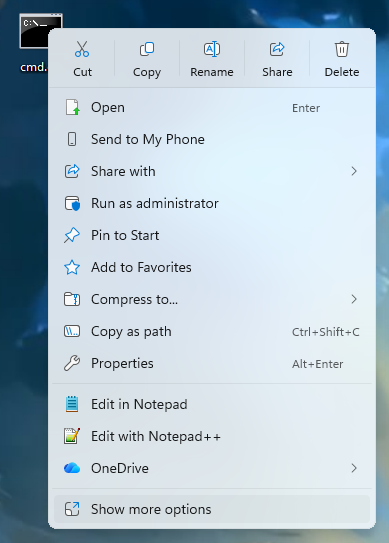
- You will now see CONC Request Run as Administrator.
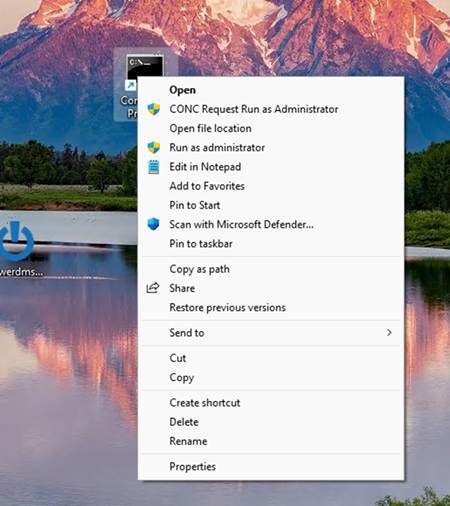
Step 3 — Select "CONC Request Run as Administrator"
Click CONC Request Run as Administrator.
You will see:
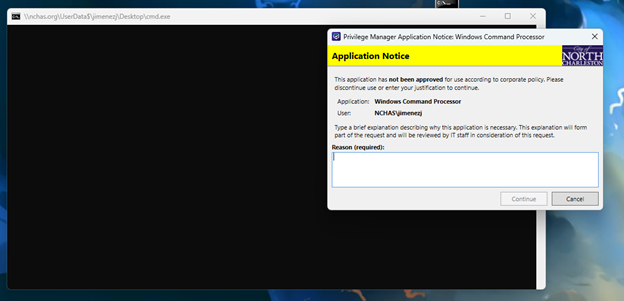
Please type the reason for this elevation request (for example: updating the application).
Step 4 — Run the Application
Once approved, the application will open with the elevated permissions.
If the option does not appear on your computer, contact MIS for assistance.

